Discover: let jobs come to you
Discover scans legal, machine-readable sources with plain code - public APIs and feeds only, 0 tokens, nothing leaves your machine except HTTPS requests to the feeds themselves.
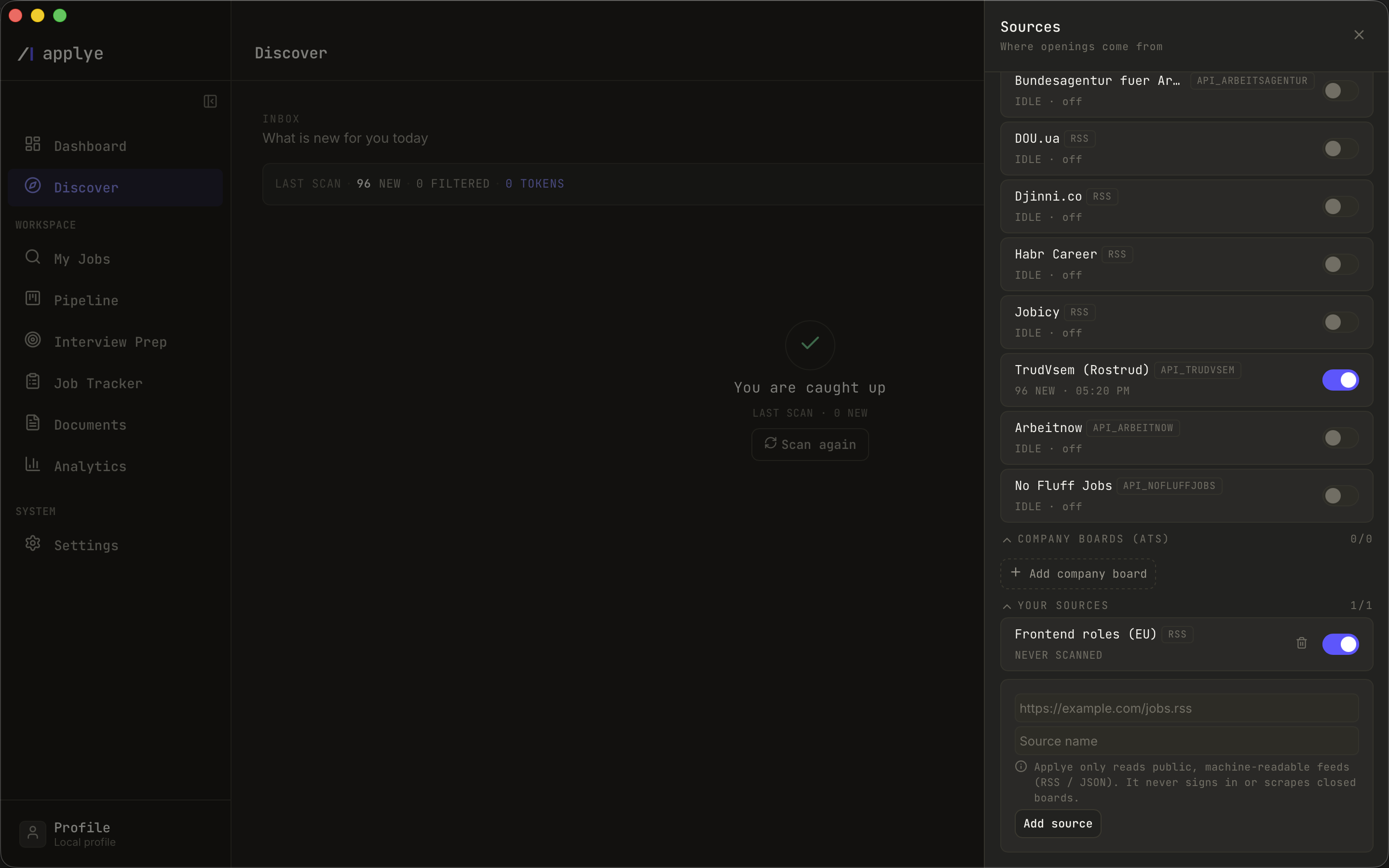
1. Choose sources
- Built-ins - Remotive, We Work Remotely, Himalayas; toggle them in the Sources panel.
- Company ATS boards - add a Greenhouse, Lever, or Ashby board by its company slug.
- Your own RSS feeds - any https feed you trust.
- Closed boards (LinkedIn, Indeed, StepStone) are deliberately not scanned - that is a product stance, see source legality.
2. Scan and triage
- Hit Scan. Everything fetched is filtered locally: title keywords (derived from your target roles until you customize them per source), your geographic scope, and dedupe against jobs you already have.
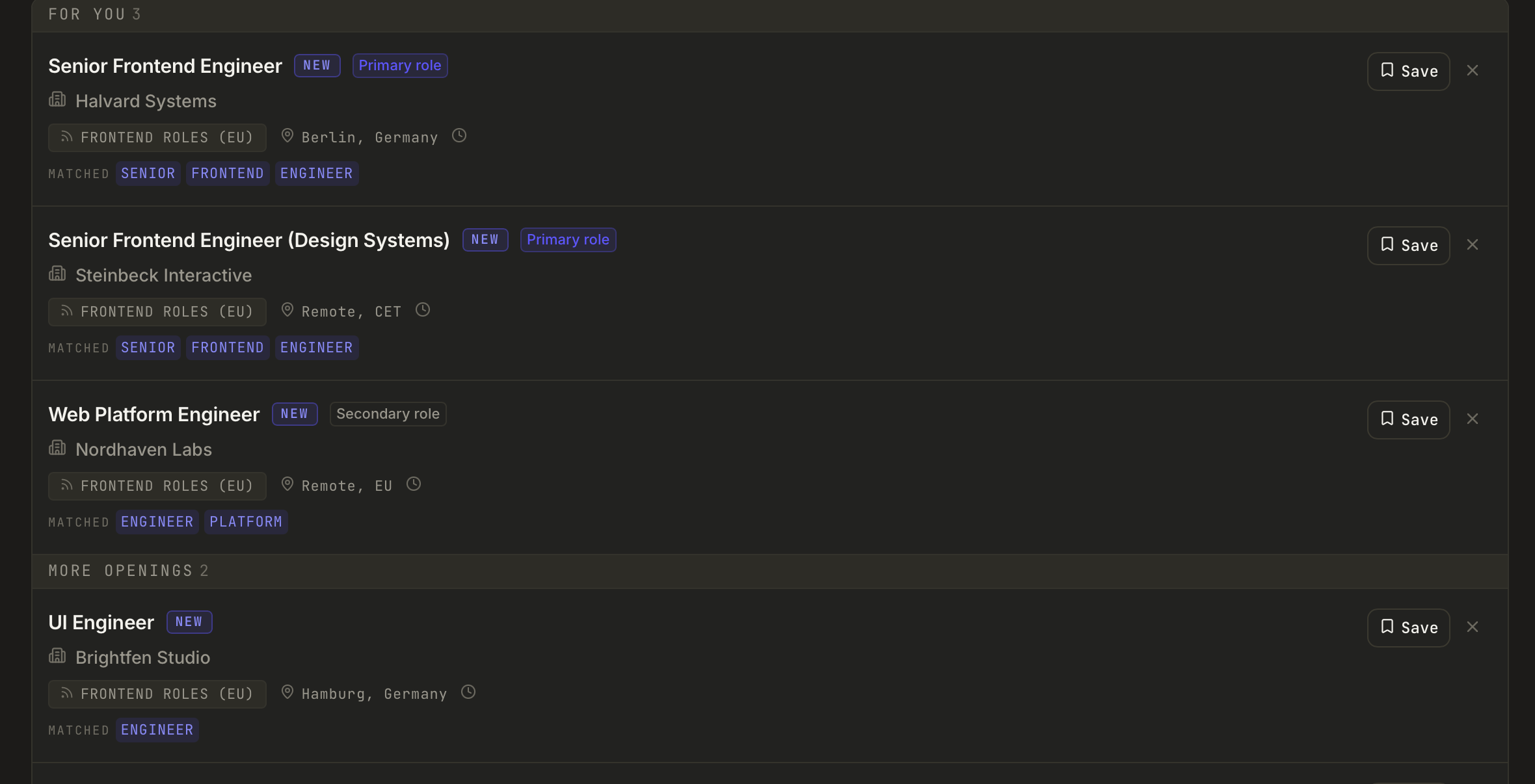
- Triage the feed: each row shows role, company, source, location, age, matched keywords, and a NEW pill. Filter by text, source, work type (remote / hybrid / onsite), and a region - country - city location tree built from what the scan actually found.
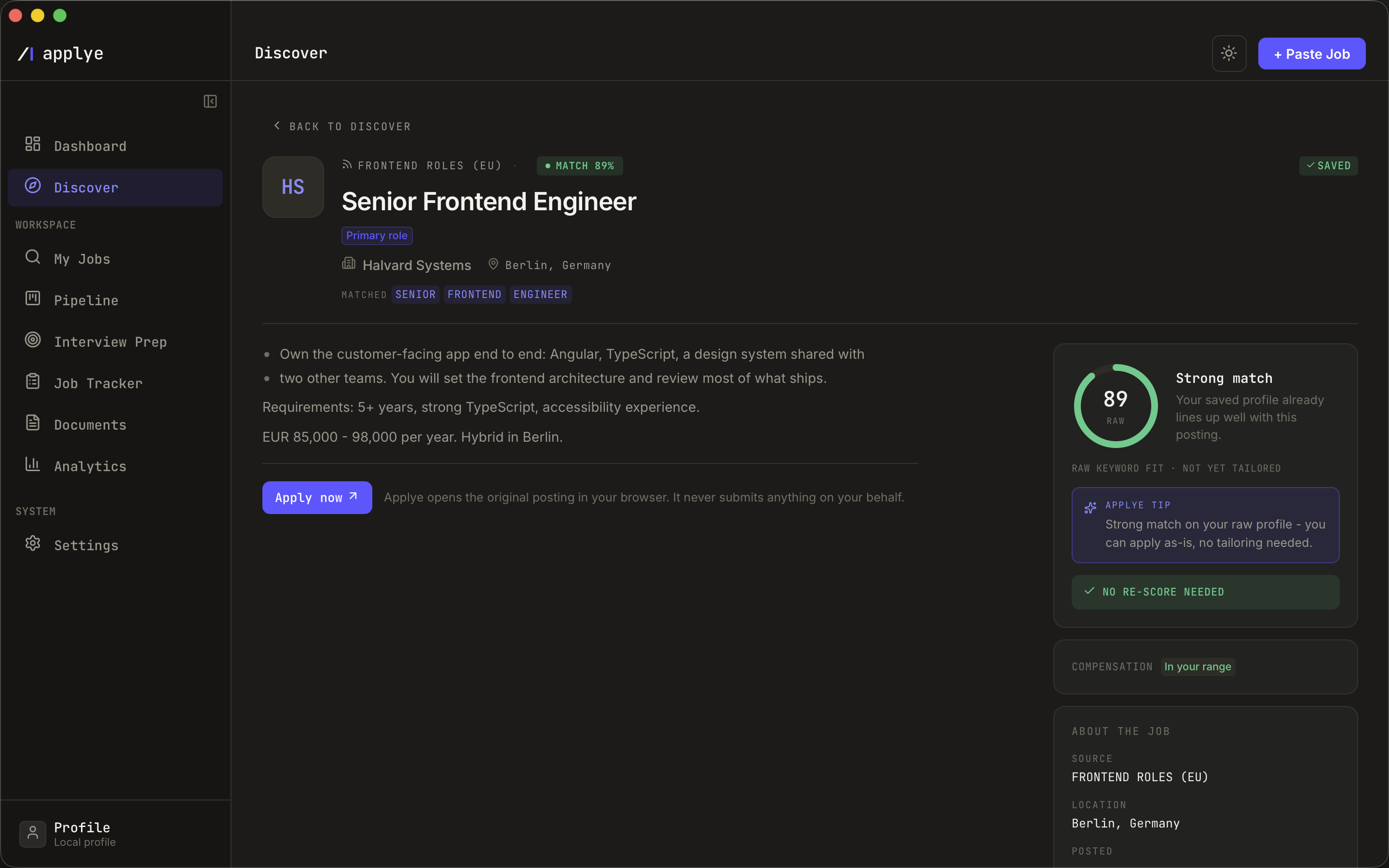
- Click a row for the full-screen detail: the parsed description, a keyword-fit ring (deterministic, 0 tokens), and "Score with AI" if you want the real recruiter check.
- Save moves the job into My Jobs; Dismiss hides it forever (with an inline Undo). Apply now opens the original posting in your browser - submitting stays yours.
3. Reading the badges
Every row and every detail hero carries badges that are computed by plain code from your profile - no model is asked, and nothing is invented:
- Archetype fit - Primary role, Secondary role, or Adjacent role, matched from the target roles in your profile. Feed rows match on the job title alone, so the badge appears before the full description is even loaded.
- Salary fit - above, within, or below the compensation range on your profile, and "salary not stated" when the posting says nothing.
- NEW for first-seen postings, SAVED once saved.
The For you section is ordered by that fit tier, and the tier feeds the deterministic 0-token score behind the ordering. If you have not defined any target roles, no badge is shown at all - an honest blank rather than a guess.