First run & quick tour
What happens the first time you open Applye, and what every item in the sidebar does. Three minutes, no account, nothing leaves your machine.
First launch
- Open the app. A local SQLite database is created on your machine - that is the whole "signup".
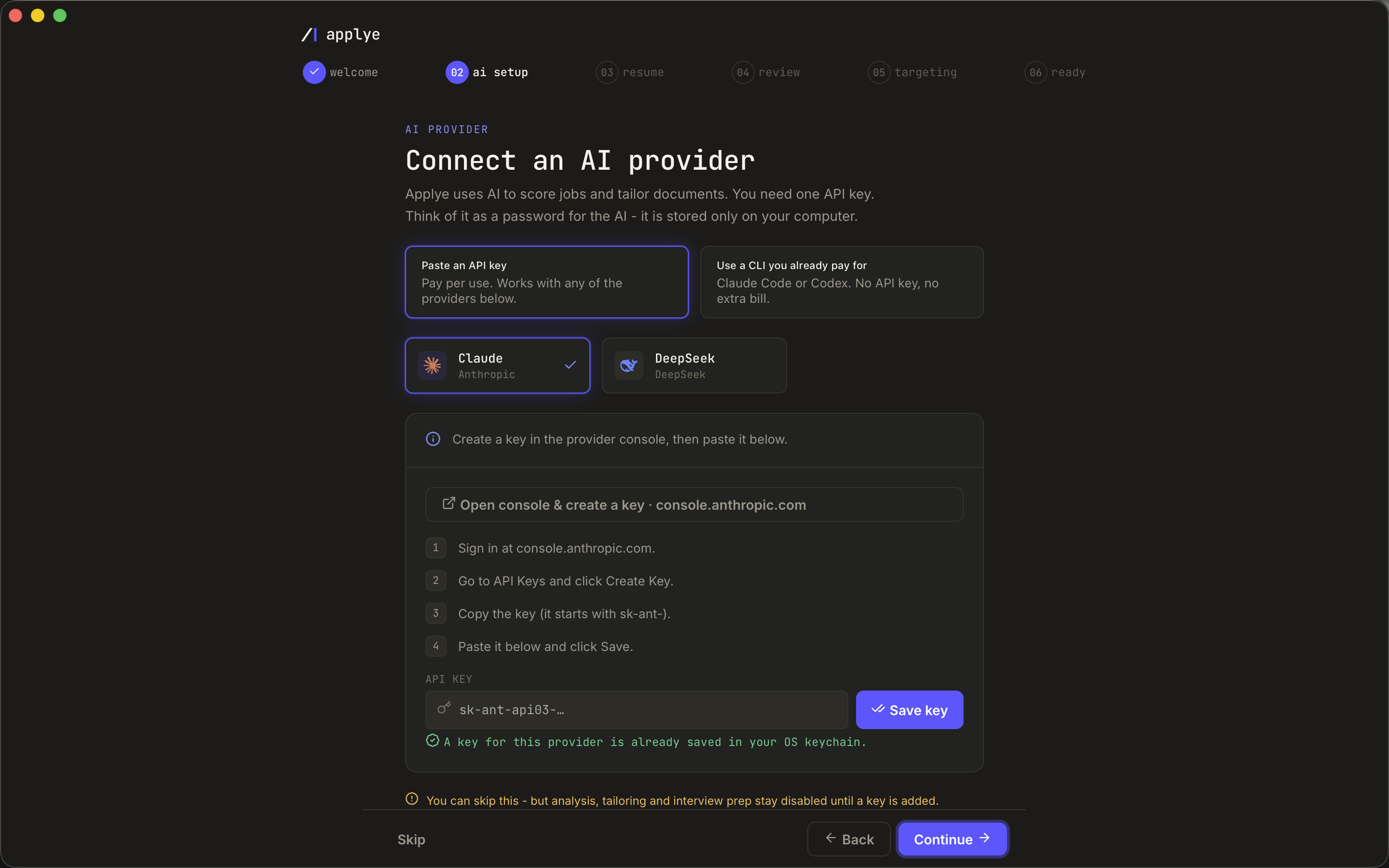
- The onboarding wizard walks you through the basics, including the optional AI setup with provider cards. You can skip AI entirely - every 0-token feature works without it.
- Everything chosen here can be changed later in Settings.
The sidebar, top to bottom
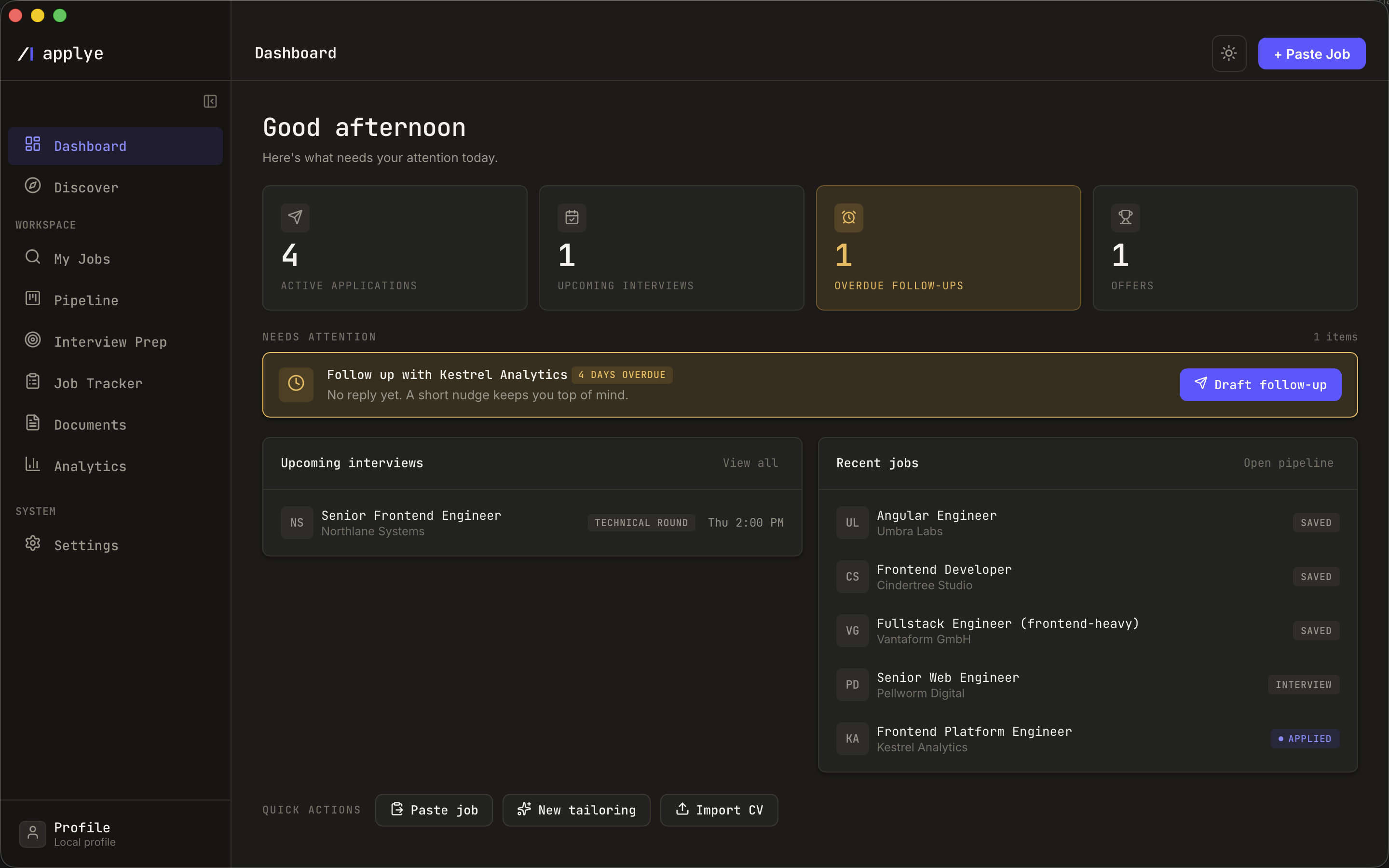
- Dashboard - counters, a "needs attention" queue, upcoming interviews, quick actions.
- Discover - scan legal job feeds and triage what comes back.
- My Jobs - every job you pasted or saved, with scoring and tailoring per job.
- Pipeline - the kanban of active applications (applied / interview / offer).
- Interview Prep - a stage timeline per application you are interviewing for.
- Job Tracker - the table view of everything, with the exportable report.
- Analytics - how your search is actually going, computed locally.
- Documents - the library of exported CVs and cover letters.
- Profile - the data all scoring and tailoring compares against.
- Settings - AI, language, theme, job-search scope, data reset.